Getting started
Sidecue needs two things: an AI model to generate cues, and transcription to turn speech into text. Both are free to start with, and both can run entirely on your own machine if you would rather nothing left it.
1 Install
Download the installer and run it. Sidecue installs without administrator rights and appears in your Start menu.
On first launch two windows open: a small panel (the overlay) that will show your cues, and the setup wizard. The wizard asks about exactly three things Sidecue cannot start without — the AI model, transcription and audio devices. Those are the next three steps of this guide.
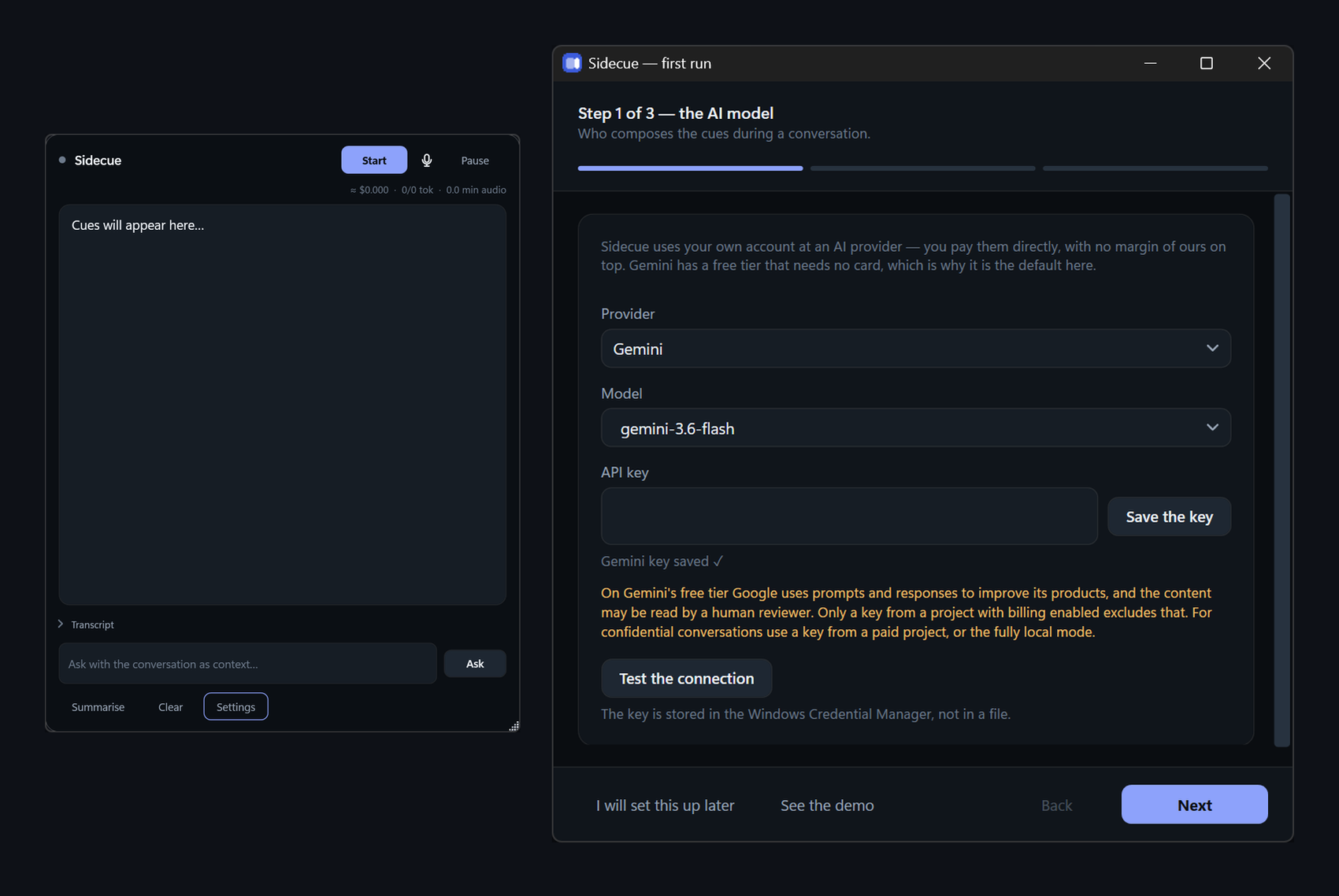
--wizard switch.
2 An AI key
Sidecue uses your own account with an AI provider. We do not resell access and we add no margin — you pay the provider directly for what you use.
Start with Google Gemini. It has a free tier and does not ask for a card:
- Go to
aistudio.google.com - Click Get API key → Create API key
- Copy the key (it begins with
AIza…)
In the wizard (and later in Settings, under AI provider) leave Gemini selected, paste the key and click Save the key. Then click Test the connection — you should see a green confirmation.
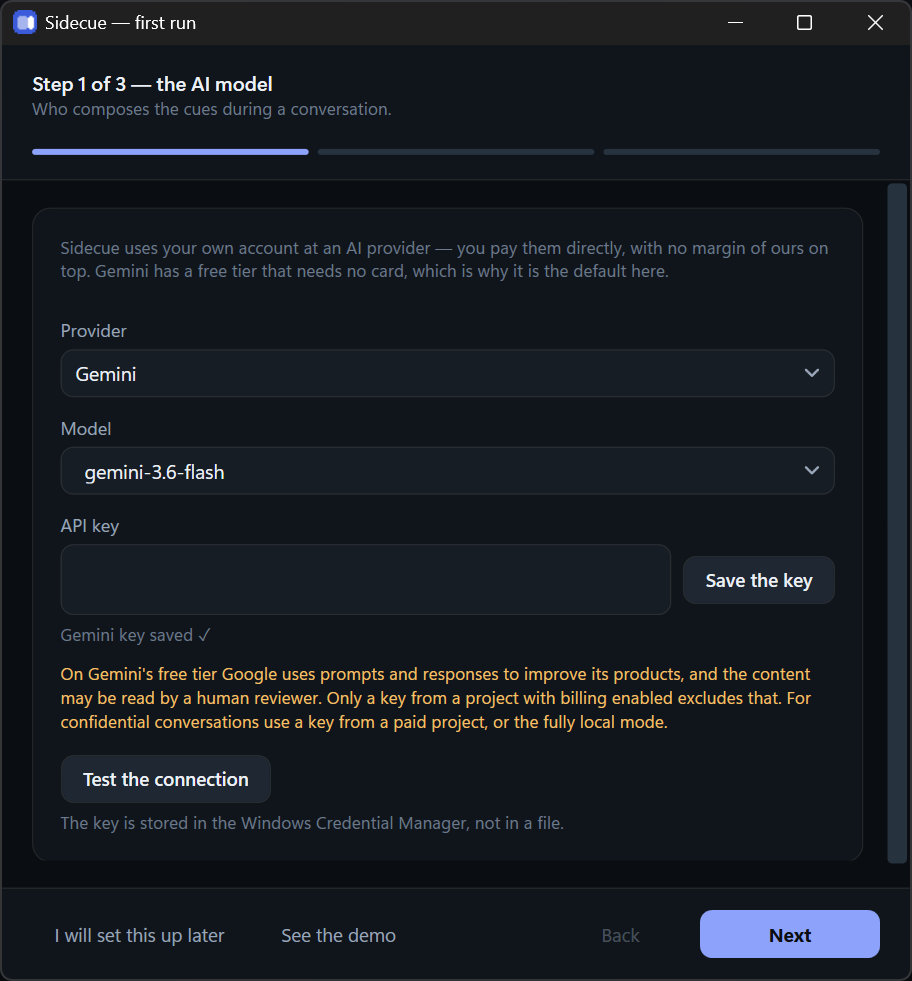
Want no cloud involved? Choose Ollama, install it on your machine and pull a model with
ollama pull llama3.1. No key is needed and the
running cost is zero.
Keys are stored in the Windows Credential Manager, never in plain files.
3 Transcription
Under Transcription (STT), pick an engine. The default is Deepgram — it transcribes live and comes with free starting credit:
- Go to
console.deepgram.com - API Keys → Create a New API Key
- Copy it into the wizard, then click Save the key
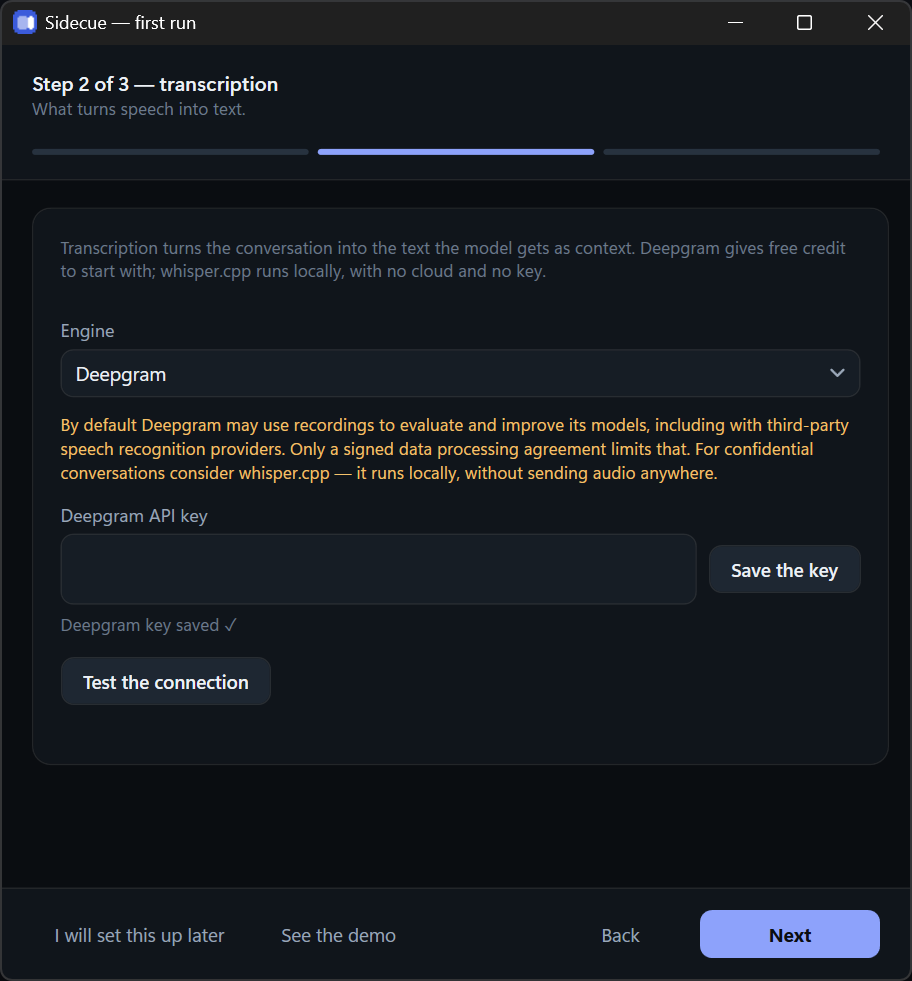
.bin model. Audio then never leaves your computer
at any stage — neither for transcription nor, with Ollama, for the cues themselves.
If that is the mode you need but you would rather not set it up yourself,
write to us and we will walk you through it.
The glossary field is worth filling in: client names, product names, industry terms. Transcription picks them up far more reliably, and a better transcript means better cues.
4 Audio devices
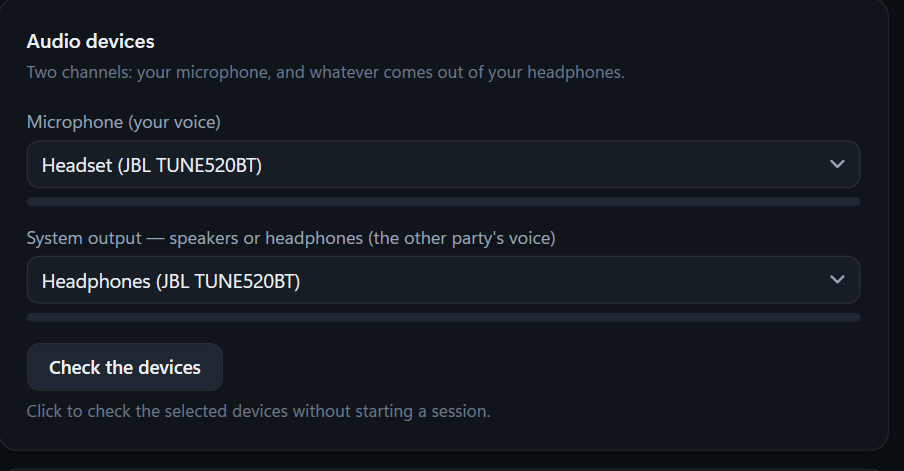
This is the one step where people go wrong, so it is worth understanding.
Sidecue listens to two sources at once:
| Setting | What it captures | Choose |
|---|---|---|
| Microphone | your voice | the microphone you actually speak into |
| System audio output | the other person's voice | your speakers or headphones — the device you hear the call on |
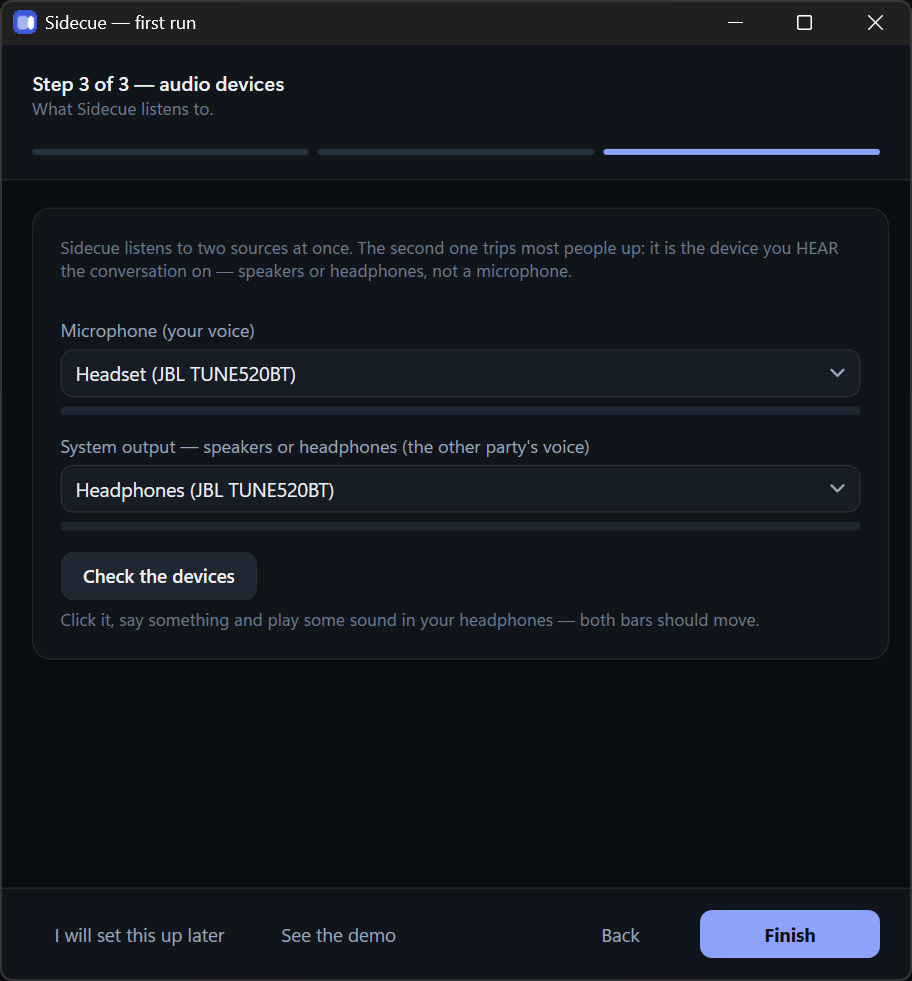
Under each dropdown there is a signal level meter, and below them a Check the devices button. Click it, say something and play a sound in your headphones — both meters should move. If one stays flat, you picked the wrong device. You do not need to start a session for this.
Click Finish. The same dropdowns live in Settings if you want to change them later.
5 Your first call
Go back to the overlay and click Start. From that point:
- cues appear in the panel as the conversation goes on,
- Ask lets you put your own question to the model at any moment,
- Summarise produces a summary and action items you can export,
- the counter at the top shows what the session has cost so far.
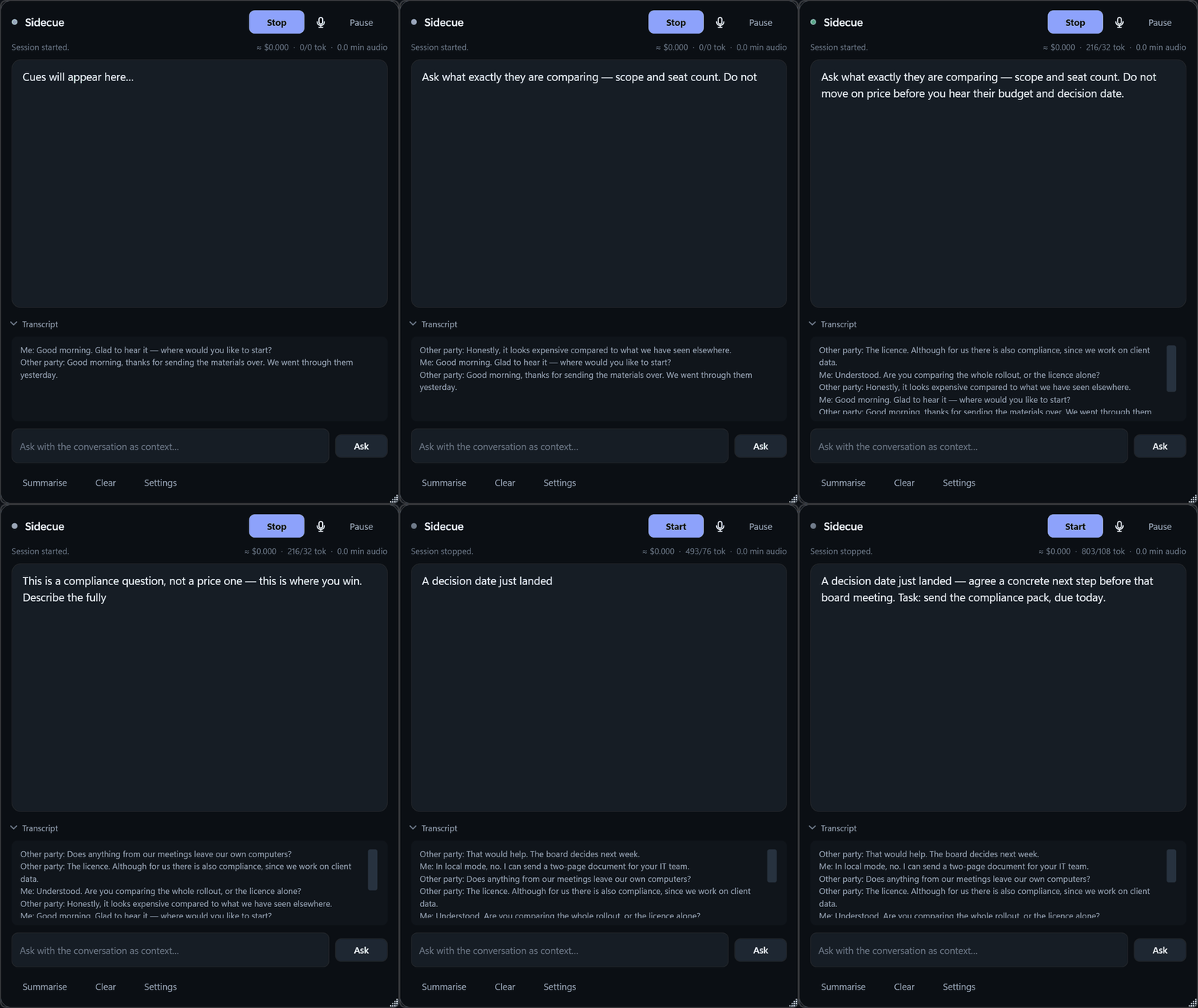
The newest transcript line sits at the top and older ones move down — the panel is short, so what you see without scrolling is what was just said.
Two buttons worth knowing straight away
| Button | What it does |
|---|---|
| Pause | stops everything — nothing leaves your machine |
| Microphone icon | mutes only you; the other person is still transcribed |
Keyboard shortcuts
| Shortcut | Action |
|---|---|
Ctrl+Alt+H | show or hide the panel |
Ctrl+Alt+A | ask a question |
Ctrl+Alt+P | pause |
Ctrl+Alt+M | mute the microphone |
These work globally, including while your meeting window has focus. You never have to switch to Sidecue to use them.
Keeping costs visible
You pay your AI provider for what you use, so Sidecue makes that visible rather than leaving you to guess:
- a live counter shows tokens, minutes and the estimated cost of the session,
- Settings let you set a hard spending cap — once reached, the session pauses itself.

Privacy
- API keys live in the Windows Credential Manager, never in files.
- The diagnostic log does not record what was said by default — only how long it was. Full transcripts appear only if you deliberately switch that on while diagnosing a problem.
- Pause (
Ctrl+Alt+P) stops anything leaving your machine, immediately. - In local mode (Ollama + whisper.cpp) neither the audio nor the transcript ever leaves your computer.
Common problems
The panel shows no cues even though the call is running
Check the level meters in Settings. If one of them does not move, the wrong device is selected — go back to step 4. The usual cause is a microphone chosen under "system audio output" instead of speakers.
Cues arrive with a delay
That is expected with chunked engines (WhisperApi, whisper.cpp) — they need a moment of silence to detect the end of an utterance. Deepgram streams live and reacts faster.
A rate-limit error from the AI provider
Free tiers can be tight. In Settings, switch on "Only answer the other party's questions" — Sidecue then speaks up less often and stays within the limit.
It says the trial has ended
The trial runs 14 days from your first session. Licences are available at sidecue.io; the key arrives by e-mail and goes into the "Licence" section at the top of Settings. One licence covers two computers.
I am changing computers
Click Deactivate in Settings on the old machine. That frees the slot and the same key activates elsewhere.
A yellow border appeared around the chat window
Windows draws it while Sidecue reads the chat with OCR — it is the system's sign that the window's image is being captured. OCR is on when you choose it in Settings, and also on its own in Auto mode when a window does not expose its text the usual way.
Sidecue asks Windows to drop the border, and Windows may ask for your consent. If you do not give it, the border stays and the panel says so in its status line. On Windows 10 the border cannot be switched off at all — only newer versions of Windows allow it.
If the border gets in the way, set the reading method in Settings to Uia. It works without capturing the image and handles chat in a browser well, but not every desktop application.
Windows N or KN edition
These editions ship without media codecs. Install the Media Feature Pack from Microsoft.
An antivirus or Windows warns about Sidecue
Sidecue is signed with a certificate issued to Verilabs sp. z o.o. — that is the publisher the installer window should show. Release 1.0.3 passed a Microsoft Defender scan with no detections.
The application does, however, do a few things antivirus heuristics can be sensitive to: it records the sound from your speakers so it can hear the other party, registers global keyboard shortcuts, hides its panel from screen capture, can start together with Windows, and opens a port on your local network once you switch on the phone view. If your antivirus flags it, write to us with the product name and the exact message — we will report the false positive to the vendor. Do not switch your protection off to install Sidecue.
On the first downloads Windows SmartScreen may warn that the file is not commonly downloaded. That is a new publisher's reputation, which grows with every installation — not a detection.
The firewall asks for permission when I enable the phone view
Allow it for private networks. This only affects viewing cues on your phone over the same Wi-Fi network.
Need a hand?
Write to [email protected]. If it concerns how the application behaves, include the version — it is in the Settings window title — and describe what happens.
We may also ask for the log file from %APPDATA%\Sidecue\sidecue.log. By default
it contains no conversation content, only a record of what the application did.